Create your Learner Journey branded workspace easily
Discover how to effortlessly create a Learner Journey branded workspace, perfectly tailored to your organisation's unique purpose and visual identity.

Founder, Learner Journey
How to Create a Branded Workspace with Learner Journey
Every organisation is different. Your brand is different, your audience is different, and the experience you want to create for your learners, members, employees or customers is different.
That is why Learner Journey lets you create branded workspaces — dedicated digital environments that can be configured around a particular organisation, community, programme or purpose.
A workspace can become your training platform, learning community, membership hub, events portal, intranet, website, coaching environment or all-in-one digital community.
And you can create one in just a few steps.
What is a Learner Journey Workspace?
A workspace is your own dedicated area within Learner Journey.
Rather than forcing every organisation into exactly the same structure, you can decide what your workspace is for, which features it needs and how it should look.
For example, you could create:
A staff training and compliance portal
A professional development and CPD hub
A membership community
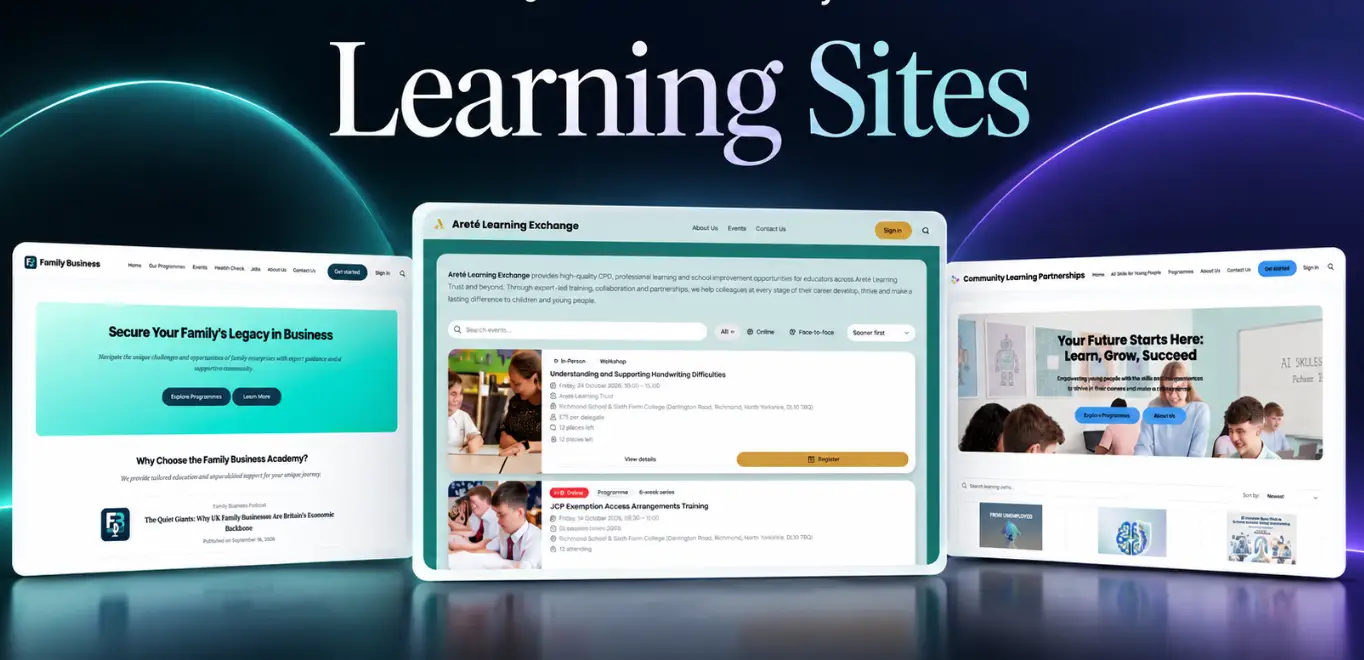
An academy trust learning exchange
A customer training academy
An employee intranet
A coaching community
An events and learning hub
A recruitment and onboarding portal
A branded website and learning platform
You can also operate multiple workspaces for different audiences, programmes, customers or communities.
Step 1: Create Your Workspace
Navigate to Workspaces in Learner Journey and select Create Workspace.
The setup process takes you through four stages:
Details → Purpose → Branding → Invites
The first step is to give your workspace a name.
This might be your organisation’s name, the name of a programme or something completely different.
You then choose your unique Learner Journey workspace URL:
learnerjourney.com/workspaces/your-workspace
This gives you a dedicated destination that you can share with your audience.
Step 2: Choose Whether Your Workspace Is Public or Private
Next, choose the privacy setting for your workspace.
A Private Workspace can only be viewed by members. This is ideal for staff training, internal communications, compliance programmes, private communities and intranets.
A Public Workspace can be discovered and viewed by anyone. This works well for public learning communities, membership organisations, events, marketing, websites and open educational resources.
Your choice depends entirely on the experience you want to create.
Step 3: Tell Learner Journey What Your Workspace Is For
This is where Learner Journey becomes particularly flexible.
Instead of starting with dozens of features and having to configure everything manually, you can select the purpose that most closely matches what you want to achieve.
Learner Journey then pre-configures appropriate modules and features for you.
All Features
Choose All Features if you want the complete Learner Journey experience.
This combines learning, content, communication, assessments, events and community tools in one environment.
It’s a good starting point when you want to build a comprehensive learning or engagement platform.
Training & Compliance
Create a dedicated environment for training, professional development and compliance.
You can combine learning content, learning paths, quizzes, assessments and certificates to create structured programmes and monitor participation.
Community & Memberships
Create an online home for your members.
Bring together your timeline, groups, messaging, events, media and member directories rather than spreading your community across multiple disconnected systems.
Website Management
Use your workspace as the foundation for managing website content and creating a branded digital presence.
This is particularly useful when you want your website and learning or community experience to sit much closer together.
Recruitment & Hiring
Create a recruitment workspace for vacancies, candidate engagement, onboarding, communication and supporting content.
Coaching
Build a coaching environment incorporating AI coaching alongside community functionality such as groups, messaging and timelines.
This provides organisations with an interesting way of combining human communities with AI-powered support.
Forum
Create a dedicated discussion environment where people can communicate through timelines, groups and messaging while discovering other members through the people directory.
Marketing
Create marketing landing pages alongside communities for your audience.
This means the journey from discovering your organisation to becoming part of its community can happen within the same wider platform.
Podcasting
Build a community around your podcast content, combining podcast functionality with groups, messaging and a social timeline.
Video Hosting
Create your own video-focused environment with channels, pages, messaging, groups and community functionality.
Blogging
Create, publish and organise searchable written content while giving contributors somewhere to collaborate and grow an audience.
Fun & Games
Create a more gamified learning environment incorporating quizzes, games, leaderboards and certificates.
Intranet
Create a secure private workspace for employees, bringing together internal communications, collaboration, content and forms.
Sales Enablement
Create a central environment for sales teams containing content, playbooks, onboarding resources, communications and supporting learning.
Timeline
Sometimes simplicity is exactly what you need.
The Timeline configuration creates a straightforward social environment where your audience can publish and interact with posts.
AI Imagery
Create a workspace specifically focused on creating and editing photos and images using AI.
The important point is that you don’t have to build every workspace from scratch. Select the closest purpose and Learner Journey gives you an appropriate starting configuration.
Step 4: Add Your Branding
Next, turn the workspace into your environment.
Upload your organisation’s logo or use AI to generate imagery.
You can then configure the appearance of the workspace, including:
Sidebar background
Sidebar text
Sidebar icons
Primary accent
Font
This allows you to move away from the feeling of using a generic software platform and instead create an environment that reflects your organisation’s visual identity.
A professional association can create a member experience around its brand. A training provider can create a learning academy. A Multi-Academy Trust can create a trust-wide professional development hub. A company can create its own employee learning environment.
The technology is Learner Journey. The experience presented to your audience is yours.
Step 5: Invite Your First Members
The final stage is optional.
You can immediately start inviting people into your new workspace, or you can finish configuring it first and invite people later.
Existing Learner Journey users can be found and invited directly.
Alternatively, simply enter someone’s name and email address.
Learner Journey emails them an invitation containing a link. They don’t need an existing Learner Journey account — they can create one and join your workspace directly from the invitation.
This makes launching a new community or learning environment straightforward.
One Platform, Many Branded Experiences
One of the biggest advantages of workspaces is that the same underlying Learner Journey platform can support very different use cases.
An organisation might have one workspace for customers, another for employees and another for a particular learning programme.
A membership body could combine learning, CPD, events and community.
A school group could create a professional learning exchange for teachers.
A training provider could give different programmes or customers their own dedicated spaces.
Instead of buying separate systems for learning, events, communities, content and communication, organisations can bring these experiences together.
Your Workspace Can Grow With You
Creating the workspace is only the beginning.
Once inside, you can start adding the Learner Journey functionality that makes sense for your audience — from AI-generated learning content and learning paths to quizzes, assessments, events, certificates, AI Tutors, forms, communities and other interactive experiences.
This means you don’t have to know exactly what your digital learning environment will look like in two years’ time.
Start with the experience you need today and expand it as your requirements grow.
Create Your Branded Workspace with Learner Journey
Creating a branded digital platform used to mean commissioning bespoke software, integrating several different systems or compromising with an off-the-shelf LMS.
Learner Journey takes a different approach.
Create a workspace. Choose its purpose. Apply your branding. Invite your audience. Then build the learning, events, content and community experience you need.
Whether you’re creating a training academy, professional community, membership hub, intranet, coaching programme or complete learning ecosystem, you can start with a branded Learner Journey workspace and make it your own.